Programming And Development
Jul 18, 2025 · 2 min read · dmg dekels
Speed Up Unity Play Mode With Configurable Enter Play Mode
Tired of waiting for Unity to enter Play Mode? Here's a quick fix! As your Unity project grows in size, you've probably noticed an increasingly frustrating delay when you hit the Play
Tired of waiting for Unity to enter Play Mode? Here's a quick fix!
As your Unity project grows in size, you've probably noticed an increasingly frustrating delay when you hit the Play button. Unity often takes a while to load everything - even when you haven’t made any major changes.
But did you know there's a built-in Unity feature that can reduce that Play Mode wait time significantly?
In this guide, you’ll learn how to enable Configurable Enter Play Mode in Unity for near-instant Play Mode launches - perfect for speeding up your iteration cycles and testing.
💡 Why Is Unity So Slow to Enter Play Mode?
By default, when you press Play, Unity does two expensive operations:
- Reloads the entire scene
- Reloads the scripting domain (which resets all your static variables and scripting states)
While this is necessary in some cases, it's often overkill - especially if you haven't made any recent changes to your scene or scripts.
⚙️ How to Enable Instant Play Mode in Unity
You can customize Unity’s behavior to skip one or both of these reload steps. Here’s how:
✅ Step-by-Step Instructions:
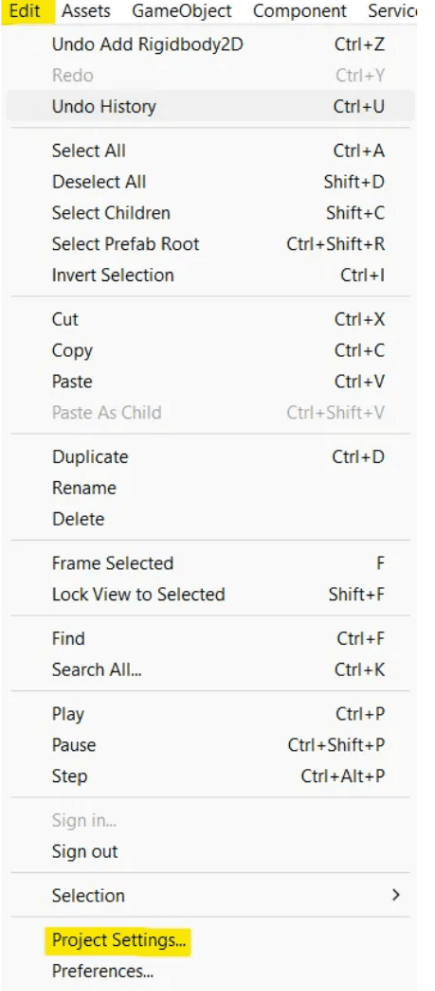
- Go to
Edit → Project Settings
- In the Project Settings window, select Editor
- Scroll or search for Enter Play Mode Settings
- Enable Enter Play Mode Options
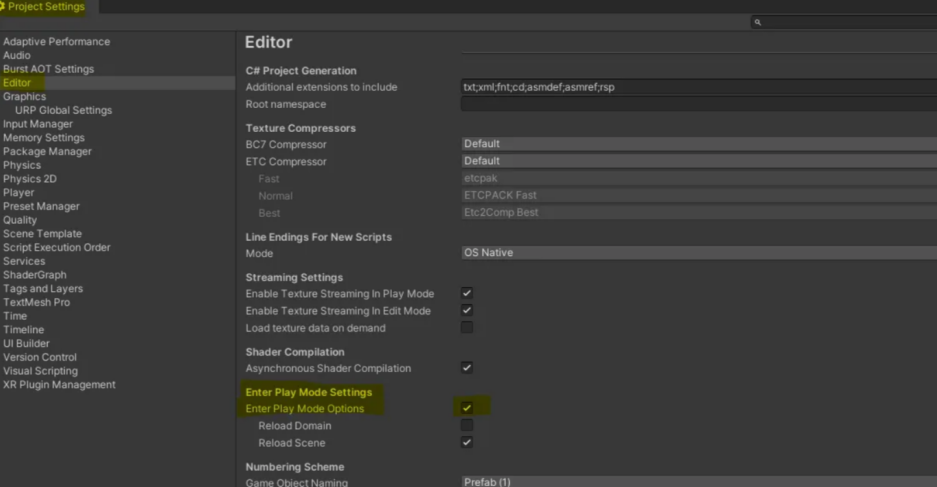
- Check or uncheck the following:
- ✅ Reload Scene (recommended ON)
- ❌ Reload Domain (recommended OFF)
🔄 This setup reloads your scene but skips domain reloads - which saves a ton of time during testing.
📌 Recommended Settings for Most Developers
SettingStatusWhyReload Scene✅ EnabledKeeps your scene fresh each playReload Domain❌ DisabledKeeps scripts "hot loaded"
This configuration gives you the best of both worlds - your scene gets refreshed, but your scripts stay intact, reducing load times.
🔗 Related:
- Unity’s Official Docs on Configurable Enter Play Mode
- Unity Tips: Best Practices for Faster Iteration
- Unity Editor Hacks Every Dev Should Know
🧠 Final Thoughts
This feature was introduced in Unity 2019.3, so if you're using an older version, the options may not appear.
Using Enter Play Mode Options is a simple but powerful way to save time, especially during frequent iteration and debugging. Set it once - and enjoy faster Play Mode almost every time.
Let me know in the comments below if you’ve tried this - and whether it improved your workflow!
Article complete
XP lands automatically when you reach the end.
Rate this article
Comments
Comments are held for moderation before appearing publicly.