
Why Regular Maintenance of Unity Dev Tools Matters
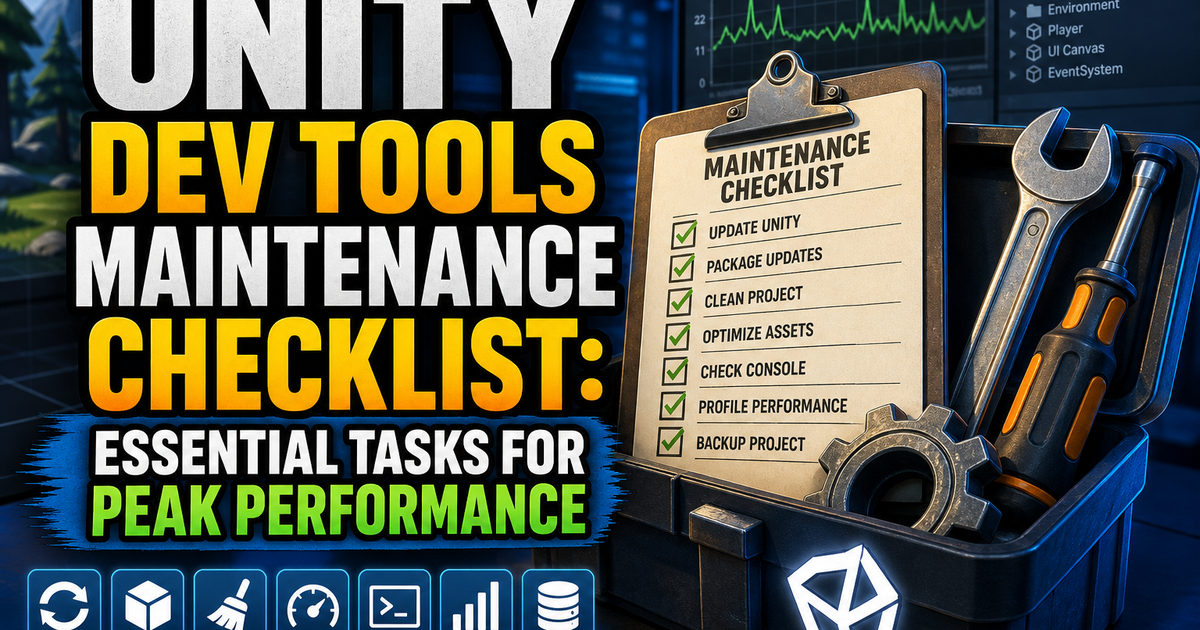
Unity projects rot quietly. Packages drift out of sync, cached shaders balloon into gigabytes of dead weight, and Library folders accumulate artifacts from Unity versions you upgraded away from months ago. None of this throws an error immediately – it just slows you down, one editor freeze and one mysterious build failure at a time. A disciplined unity dev tools maintenance checklist is what separates teams that ship on schedule from teams that spend every Friday afternoon debugging environment issues that have nothing to do with their actual game.
Maintenance isn’t glamorous work, but it’s cheap insurance. A ten-minute cache clear or dependency audit today prevents a four-hour “why won’t this build” session next sprint. It also matters more as teams scale: one developer with a messy Library folder is an annoyance, but ten developers with mismatched package versions and stale Git LFS pointers is a production incident waiting to happen. The rest of this checklist breaks maintenance into concrete, repeatable tasks you can slot into daily, weekly, and quarterly routines.
Pre-Development Environment Audit
Before you write a line of code each session – or at minimum, each week – run a quick audit of your environment. This catches drift before it compounds.
Check Unity Editor version consistency. Open Unity Hub and confirm every team member is on the exact same Editor version, patch number included. A single point release difference can cause serialization mismatches in scenes and prefabs that show up as unexplained diffs in version control.
Verify installed modules. Confirm platform build support modules (iOS, Android, WebGL, consoles) are current and match what your build pipeline expects. Missing or outdated modules are a common cause of CI build failures that don’t reproduce locally.
Inspect your Project Settings. Look at Player Settings, Quality Settings, and Graphics Settings for accidental changes – these get modified more often than people realize, usually by someone testing a setting and forgetting to revert it.
Review installed external tools. IDEs, .NET SDKs, Android SDK/NDK versions, and Xcode versions should all be checked against your project’s documented requirements. Keep a simple text file or wiki page listing exact required versions so onboarding and audits are fast.
Confirm license and Unity ID status. Nothing kills momentum like a seat license expiring mid-sprint. Check organization seat allocations and renewal dates as part of this audit, especially before major milestones.
Treat this audit as a five-minute ritual, not a deep investigation. The goal is catching small inconsistencies early, before they become “works on my machine” arguments.
Package and Plugin Update Protocols
Unity’s Package Manager makes updates easy to trigger and dangerous to trigger blindly. A structured protocol prevents update chaos.
Never update packages mid-sprint. Batch package updates at sprint boundaries or during dedicated maintenance windows, never the day before a milestone build. This gives you time to catch regressions before they’re load-bearing.
Read release notes before updating. Unity’s core packages (URP, Input System, Cinemachine, Timeline) frequently ship breaking changes disguised as minor version bumps. Five minutes reading changelogs saves hours of “why did my shaders break” debugging.
Update one package category at a time. Bump rendering packages, then test. Bump third-party asset store plugins, then test. Bundling every update into one commit makes it nearly impossible to isolate which package caused a regression.
Pin versions in manifest.json. Avoid floating version ranges in production projects. Explicit version pins mean nobody accidentally pulls a breaking update just by resolving packages on a fresh machine.
Audit third-party plugins for abandonment. Asset Store plugins that haven’t been updated in over a year are a liability, especially across Unity LTS transitions. Maintain a list of plugins with their last-updated dates and flag any that need replacement candidates identified before they become blockers.
Test in an isolated branch. Create a dedicated branch for package updates, run your full test suite and a handful of manual smoke tests (scene loads, build compiles for each target platform), then merge only after verification.
Keep a rollback plan. Before updating, note current package versions somewhere outside Git in case you need to revert quickly without archaeology through commit history.
Cache Clearing and Build Optimization Steps
Unity’s caching systems are aggressive and occasionally wrong. Stale caches cause phantom bugs that disappear the moment you clear them – which is exactly why cache maintenance belongs on a schedule rather than being reserved for emergencies.
Clear the Library folder periodically. The Library folder regenerates automatically, but it accumulates cruft over time – old shader variants, stale asset import data, orphaned metadata. Deleting it and letting Unity rebuild (expect a longer reimport) resolves a surprising percentage of “editor acting weird” tickets.
Purge the Global Cache. Use Preferences > Cache Server settings or manually clear the global cache location (~/Library/Unity/cache on macOS, %LOCALAPPDATA%\Unity\cache on Windows) when you suspect corrupted cached assets, particularly after a botched import or crash during asset processing.
Manage the Shader Cache separately. Shader compilation caches can grow enormous on projects with many render pipeline variants. Use Edit > Preferences > GPU Skinning and the Shader Cache settings to clear compiled shader variants that no longer match your current pipeline configuration.
Clean Burst and IL2CPP intermediate files. These live in Library/BurstCache and platform-specific temp directories. Stale intermediate build files are a frequent cause of builds that succeed with warnings that shouldn’t be there.
Optimize the Asset Database. Run Assets > Reimport All sparingly (it’s expensive) but do it after major Unity version upgrades or when import settings feel inconsistent across the team.
Review Addressables and Asset Bundle caches. If you’re using Addressables, clear the Addressables build cache (Window > Asset Management > Addressables > Groups > Build > Clear Build Cache) before major releases to eliminate stale content catalogs shipping to users.
Trim build output directories. Old build artifacts pile up fast, especially on CI runners with persistent storage. Set up automatic pruning of builds older than your retention policy – typically the last 5-10 builds per branch is plenty.
Version Control and Project File Integrity Checks
Unity’s serialized YAML files and binary assets are notoriously merge-unfriendly. Regular integrity checks catch corruption before it reaches the whole team.
Verify .gitignore completeness. Library, Temp, Obj, Build, and Logs folders should never be tracked. Periodically diff your .gitignore against Unity’s official recommended template to catch gaps, especially after adding new tools that generate their own cache folders.
Confirm .meta file consistency. Every asset needs a matching .meta file, and every .meta file needs a matching asset. Orphaned .meta files (from deleted assets) and missing ones (from assets added outside Unity) both cause reference breakage. Tools like Assets > Reimport will regenerate missing metas, but investigate why they went missing in the first place.
Check Git LFS tracking rules. Confirm your .gitattributes correctly routes large binaries (textures, audio, models, video) through LFS. New asset types introduced mid-project frequently get missed, bloating repo size silently.
Audit for merge conflict artifacts. Search for literal <<<<<<< markers in scene and prefab files that were “resolved” incorrectly – a disturbingly common source of corrupted scenes that don’t manifest until someone opens that specific scene.
Validate serialization mode. Confirm Force Text serialization is set in Editor Settings across the whole team. Mixed binary/text serialization is a recipe for unreviewable, unmergeable diffs.
Run a periodic clone-and-open test. Have someone clone the repo fresh to a clean machine and open the project. This surfaces missing files, broken references, and platform-specific path issues that don’t show up when everyone’s working directory has years of accumulated state.
Performance Monitoring and Diagnostics
Maintenance isn’t just cleanup – it’s also verifying the tools you rely on are still performing as expected.
Profile editor responsiveness. Use the Profiler in Editor mode to check for scripts or asset postprocessors that are silently slowing down domain reloads. A single misbehaving AssetPostprocessor can add seconds to every single script compile.
Track domain reload and compile times. Unity 2021+ exposes compile time metrics in the console; if these numbers creep upward over months, it usually points to accumulating assembly definition problems or an ever-growing number of scripts in the default assembly.
Monitor build times as a trend, not a snapshot. Log build durations for each platform over time. A gradual increase often signals bloated asset pipelines, unoptimized Addressables groups, or IL2CPP configuration drift, and catching the trend early is far easier than diagnosing a build that suddenly takes three times as long.
Check memory usage in the Editor. Long editor sessions with Play Mode entered and exited repeatedly can leak memory, particularly with poorly disposed native collections or unmanaged resources in custom tools. The Memory Profiler package is worth keeping installed permanently, not just pulled out during crises.
Run frame timing diagnostics on target hardware regularly. Don’t wait for a milestone to profile on actual target devices – schedule it. Regressions introduced by package updates or new content are far cheaper to catch a week after they’re introduced than three weeks later.
Audit custom editor tools for performance regressions. In-house tooling (custom inspectors, editor windows, build scripts) rarely gets performance-reviewed after initial development. Revisit heavily used custom tools periodically to confirm they haven’t become bottlenecks as the project scaled.
Quarterly Deep Maintenance Procedures
Some maintenance tasks are too disruptive for weekly cadence but too important to skip. Schedule these quarterly, ideally during a lower-intensity development period.
Full dependency tree review. Go through every package and plugin dependency, confirm compatibility with your current Unity version and LTS roadmap, and retire anything unused. Unused packages still consume import time and increase attack surface for future breakage.
Unity version upgrade evaluation. Even if you’re not upgrading yet, evaluate whether it’s time. Staying more than one LTS cycle behind makes eventual upgrades exponentially harder due to accumulated API deprecations.
Repository size and history audit. Check overall repo size, identify large binary files that shouldn’t exist in history, and consider history rewriting (carefully, with team buy-in) if bloat has become unmanageable.
Full clean rebuild across all target platforms. Wipe Library, Temp, and build caches entirely, then rebuild from scratch for every platform you ship. This is the only reliable way to catch caching-masked issues that incremental builds hide.
Documentation refresh. Update onboarding docs, required tool versions, and setup scripts to reflect current reality. Stale onboarding documentation is a silent productivity tax on every new hire.
Security and license compliance sweep. Review third-party plugin licenses, confirm none have changed terms, and check for known vulnerabilities in any native plugins or networking libraries you depend on.
Team retrospective on tooling pain points.