

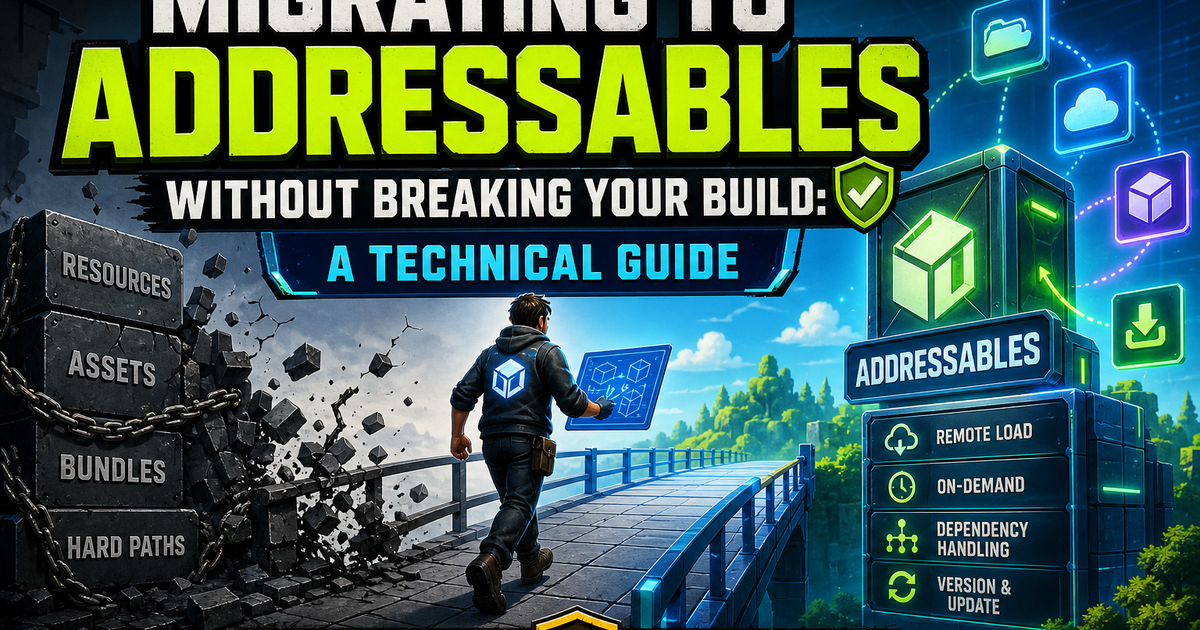
Why Addressables Matters: The Case for Migration
If you’re still shipping asset bundles by hand or dumping everything into Resources folders, you’re accumulating technical debt that will eventually block your build pipeline entirely. Addressables solves real problems: uncontrolled memory growth from Resources, painful bundle dependency management, and the inability to patch content post-release without a full rebuild. But migrating to Addressables without breaking your build requires discipline — teams that rush the conversion end up with duplicate assets, broken scene references, or bloated bundles that tank load times.
The core value proposition is straightforward. Addressables gives you a content catalog that decouples asset references from hard-coded paths, supports remote content delivery, and manages memory through reference counting instead of manual Resources.UnloadUnusedAssets() calls scattered through your codebase. It also unifies the AssetBundle and Resources workflows under one API, so you stop maintaining two mental models for asset loading.
The catch is that this isn’t a drop-in replacement. Existing scene references, prefab links, and scripted asset loads all need to be rewired. Skip the planning phase and you’ll find yourself debugging missing reference exceptions in a build that worked fine yesterday. The rest of this guide walks through a migration path that keeps your project buildable at every stage, rather than betting everything on a single risky conversion.
Pre-Migration Checklist: Audit Your Current Asset Pipeline
Before touching a single asset, inventory what you actually have. Migration failures almost always trace back to skipped audit work, not Addressables bugs.
Map your current loading patterns. Search your codebase for every instance of Resources.Load, AssetDatabase.LoadAssetAtPath, direct scene references via SceneManager.LoadScene, and any custom AssetBundle build scripts. Each of these call sites needs a corresponding Addressables API replacement — Addressables.LoadAssetAsync, Addressables.LoadSceneAsync, etc. Build a spreadsheet if you have to. You need a complete picture before you start deleting Resources folders.
Identify circular and duplicate dependencies. Run Unity’s own dependency viewer or a script that walks your asset graph. Assets referenced by multiple bundles will get duplicated unless you explicitly group shared dependencies, which bloats your build size and can cause memory duplication at runtime. This is the single most common cause of Addressables builds silently ballooning in size.
Check your platform-specific asset variants. If you’re using different textures or audio compression per platform, note how that’s currently handled, since Addressables groups and build scripts will need to replicate that logic through group schemas.
Audit scripted references vs. serialized references. Serialized references (drag-and-drop in the Inspector) survive conversion more gracefully than hardcoded string paths. Anything using string-based Resources paths needs manual rewiring — there’s no automatic conversion for that.
Version control your current build output. Before migration, tag a known-good build and keep the AssetBundle manifests if you’re moving off legacy bundles. You want a rollback point if the migration stalls midway.
Check package versions. Addressables has had breaking API changes across major versions (particularly around 1.x to 2.x transitions tied to Unity’s Scriptable Build Pipeline updates). Pin your Addressables package version and read the changelog before upgrading Unity alongside it — doing both at once is a common source of “which change broke this” debugging sessions.
Only once this audit is complete should you install the Addressables package and start configuring groups.
Setting Up Addressables Groups and Labels Safely
Group structure is the part of Addressables that’s hardest to change later without re-triggering downloads for your entire user base, so get it right early.
Start with a conservative default group layout. Don’t dump everything into “Default Local Group.” Split by content type and update frequency: UI assets, core gameplay prefabs, per-level content, and remote/downloadable content should live in separate groups. This keeps bundle sizes manageable and lets you control which content ships in the player build versus which gets hosted remotely.
Set Bundle Mode deliberately. “Pack Together” is fine for small, tightly-coupled groups (a level’s assets that always load as a unit). “Pack Separately” suits large libraries of independent assets like individual character prefabs. Getting this wrong doesn’t break your build outright, but it does create redundant bundle loads at runtime that hurt performance.
Use labels for cross-cutting queries, not organization. Labels let you load by category (“level3”, “boss-assets”) without knowing exact addresses. Resist the urge to use labels as a substitute for proper group structure — labels are a query mechanism, groups are a packing and delivery mechanism. Confusing the two leads to unpredictable bundle boundaries.
Lock down your addressable naming convention before converting assets. Once addresses are baked into scripts and prefabs referencing them, renaming becomes a search-and-replace exercise across your whole project. Establish a consistent scheme (e.g., category/subfolder/assetname) and enforce it via a naming validation script if your team is larger than one or two people.
Configure remote vs. local build/load paths explicitly. Don’t leave these on defaults if you plan to ship any remote content — verify the Build Path and Load Path settings per group match your CDN or StreamingAssets strategy. A mismatch here is a classic cause of builds that work in the Editor but fail on device.
Enable “Unique Bundle IDs” only if you actually need content updates without rebuilding the player. It changes hashing behavior and increases build time; don’t turn it on reflexively.
Converting Assets Incrementally: The Hybrid Approach
The single biggest mistake teams make is trying to convert an entire project to Addressables in one pass. Instead, run Addressables and legacy loading side by side, converting subsystem by subsystem.
Start with leaf-node content. Convert assets with no inbound dependencies from other systems first — standalone UI popups, isolated VFX prefabs, audio clips. These are low-risk because breaking them doesn’t cascade into unrelated systems. Verify each conversion builds and runs correctly before moving to the next batch.
Keep a compatibility shim during transition. Write a thin wrapper around your asset loading calls — something like an AssetLoader service that internally decides whether to call Resources.Load or Addressables.LoadAssetAsync based on a flag or registry. This lets you flip individual asset types over to Addressables without rewriting every call site simultaneously, and gives you an instant rollback switch if something breaks.
Convert scenes last. Scene references are the most disruptive to migrate because build settings, scene loading calls, and any baked lighting or navmesh data tied to scene paths all need updating. Get non-scene assets stable first so that when you do convert scenes, you’re isolating variables.
Handle addressable-to-addressable references carefully. Once an asset is addressable, any other addressable asset that references it should do so through the Addressables system, not a direct serialized reference, or you risk pulling in unwanted dependencies at runtime. Use AssetReference fields in your MonoBehaviours and ScriptableObjects instead of direct object references for anything migrated.
Run parallel builds during the transition period. Keep your old bundle/Resources build pipeline functional as a fallback build target until the Addressables path has been validated across at least one full release cycle. This costs some CI time but is far cheaper than a blocked release.
Track progress with a migration ledger. A simple checklist of “converted / verified / in-progress” per subsystem keeps the team aligned and prevents someone from assuming a system is Addressables-ready when it’s only partially converted.
Testing and Validation Strategies to Prevent Build Failures
Addressables failures are often silent in the Editor and loud on device, so your test strategy needs to specifically target that gap.
Use Play Mode Script “Use Existing Build.” This mode forces the Editor to load from actual built bundles instead of the fast-but-misleading “Use Asset Database” mode. Run your test suite under this mode regularly — it’s the closest Editor-side approximation to real device behavior and will catch missing bundle dependencies that Asset Database mode masks.
Build and test on-device early, not just in Editor. Addressables bugs frequently manifest only in device builds due to platform-specific bundle compression, case sensitivity in file paths (critical on Linux-based platforms), or catalog loading timing differences. Don’t wait until a release candidate to run your first device build post-migration.
Automate a content build validation step in CI. Run AddressablesPlayerBuildProcessor or your own script that calls AddressableAssetSettings.BuildPlayerContent() on every merge to main, and fail the build if it throws or produces build layout warnings. Catching a broken group reference in CI is far cheaper than catching it in QA.
Validate catalog and hash consistency. If you’re doing remote content updates, write a script that checks the content catalog hash against your deployed catalog before shipping, since a mismatched catalog will cause runtime load failures that don’t show up in local testing.
Stress-test reference counting. Load and release the same addressable asset repeatedly in a test scene, then check memory profiler snapshots for leaks. Addressables’ reference counting is reliable but only if every LoadAssetAsync call has a corresponding Release — asymmetric load/release pairs are a top cause of memory creep post-migration.
Test cold-start and warm-start scenarios separately. First-run catalog downloads and initialization behave differently from subsequent app launches where content is already cached locally. Both paths need explicit test coverage.
Common Migration Pitfalls and How to Avoid Them
Forgetting to release loaded assets. Every Addressables.LoadAssetAsync or InstantiateAsync call needs a matching Release call. Unlike Resources, Addressables won’t silently garbage collect unreferenced assets in the same way — the reference count has to hit zero. Build a habit (or a helper class) that pairs load and release lifecycle automatically wherever possible.
Mixing SendMessage-style scene loads with Addressables scene loads. If part of your codebase still calls SceneManager.LoadScene on a scene that’s now addressable, you’ll get inconsistent behavior. Once a scene is addressable, all loading paths to it need to go through Addressables.LoadSceneAsync.
Overlapping addresses across groups. Duplicate addressable names cause build-time errors or, worse, ambiguous resolution at runtime. Run the Addressables Analyze tool’s “Check Duplicate Bundle Dependencies” rule regularly, not just once at the start.
Ignoring the Analyze window entirely. It’s underused but catches real issues: duplicate assets across bundles, unused bundle layouts inflating build size, and scene bundle conflicts. Run it before every release build, not just during initial setup.
Treating remote content updates as risk-free. Pushing an updated remote catalog without versioning your content properly can break clients still running an older app version that expects different asset schemas. Version your catalogs and maintain backward compatibility windows.
Not accounting for build time increases. Addressables content builds add meaningful time to your CI pipeline, especially with large asset counts. Budget for this rather than discovering it the week before a deadline.
Overlooking platform-specific build path collisions. If Android and iOS share a build path configuration by mistake, you’ll get cross-contaminated bundles. Double-check per-platform build path variables in your group settings.